
ERP migration preparation: data, owners, and validation
 By Mrunal Walke2 min read
Prepare ERP migration with an owned data inventory, explicit field mappings, sample imports, and signed-off reconciliation.
On this page
ERP data migration preparation begins with knowing which records should move, who owns them, and how the destination will be checked. Build that inventory before exporting large files. A successful import message only confirms part of the work.
Decide the scope of history
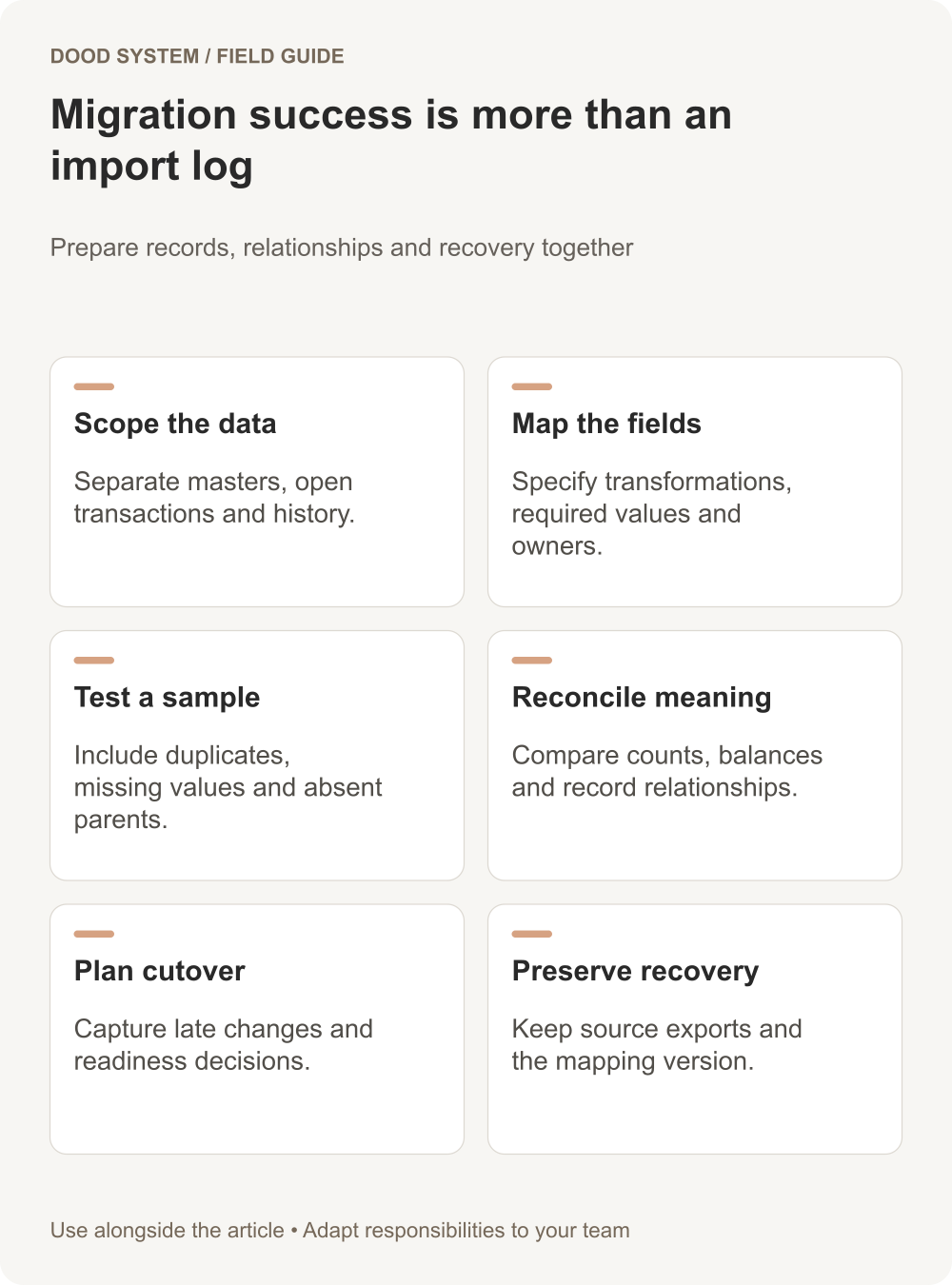
List master records, open transactions, historical transactions, attachments, and relationships separately. Decide which history must be operational in the new system and which can remain in an accessible archive. Record the owner of that decision.
Avoid importing obsolete data simply because it exists. Equally, do not discard history without checking the business's retention and access requirements with the responsible owner.
Create a mapping workbook
| Mapping field | Example question |
|---|---|
| Source field | Where does the value originate? |
| Destination field | What does the new field mean? |
| Transformation | How are dates, codes, and formats converted? |
| Required value | What happens when the source is blank? |
| Relationship | Which other record must already exist? |
| Validation | How will the converted value be checked? |
| Owner | Who resolves an ambiguous value? |
Keep stable source IDs where possible so imported records can be traced back. Record any intentional exclusions rather than hiding them in a script.
Import a representative sample
ERPNext's Data Import tool supports importing records from CSV or Excel files. Confirm the template and behavior for your installed version and selected document types.
Test a normal record, missing required information, a duplicate, an unusual character, and a related record whose parent is absent. Inspect the resulting business records, not just the import log.
Reconcile counts and meaning
Compare counts by record type and category. For transaction data, compare relevant quantities or balances using definitions agreed with the responsible business team. Investigate differences and retain an exception register.
A matching row count is insufficient if customers are linked to the wrong transactions. Trace a sample of relationships and attachments from source to destination.
Plan the final cutover
Record when source changes stop, how late changes are captured, who approves the final reconciliation, and how access changes after launch. Preserve recoverable source exports and the mapping version used for the run.
The ERP requirements process and migration plan should agree on the workflows the imported data must support. Bring one sample file and its mapping questions to a migration readiness discussion before scheduling the live move.